Guild Enrollment Information

Congratulations on your enrollment approval!
Please see below for information to register for your eCornell certificate program:
Once you are approved by Guild to enroll in an eCornell certificate program, you will need to wait for your enrollment link. Enrollment links are sent on the first business day of the month you are approved for enrollment. You can use the link to complete your registration for your program and select your course start dates.
*Please note that, even if you are approved to enroll, you will not receive your registration email until the month you are approved for enrollment begins. For example, if you are approved for September enrollment on August 10, you will receive your enrollment email on the first business day of September. That email will provide access to register for your program and select your course start dates. If you do not receive your enrollment email as expected, please contact Guild Support.
To Process Your Enrollment:
- Once you have been notified that registration is open, click on the "Complete Enrollment" link included in the email from eCornell. This email will come from helpdesk@ecornell.cornell.edu.
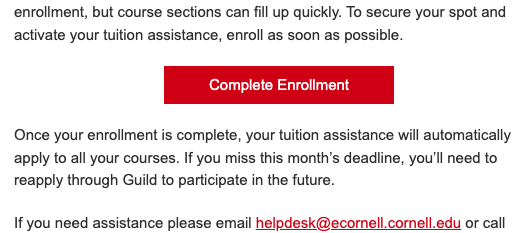
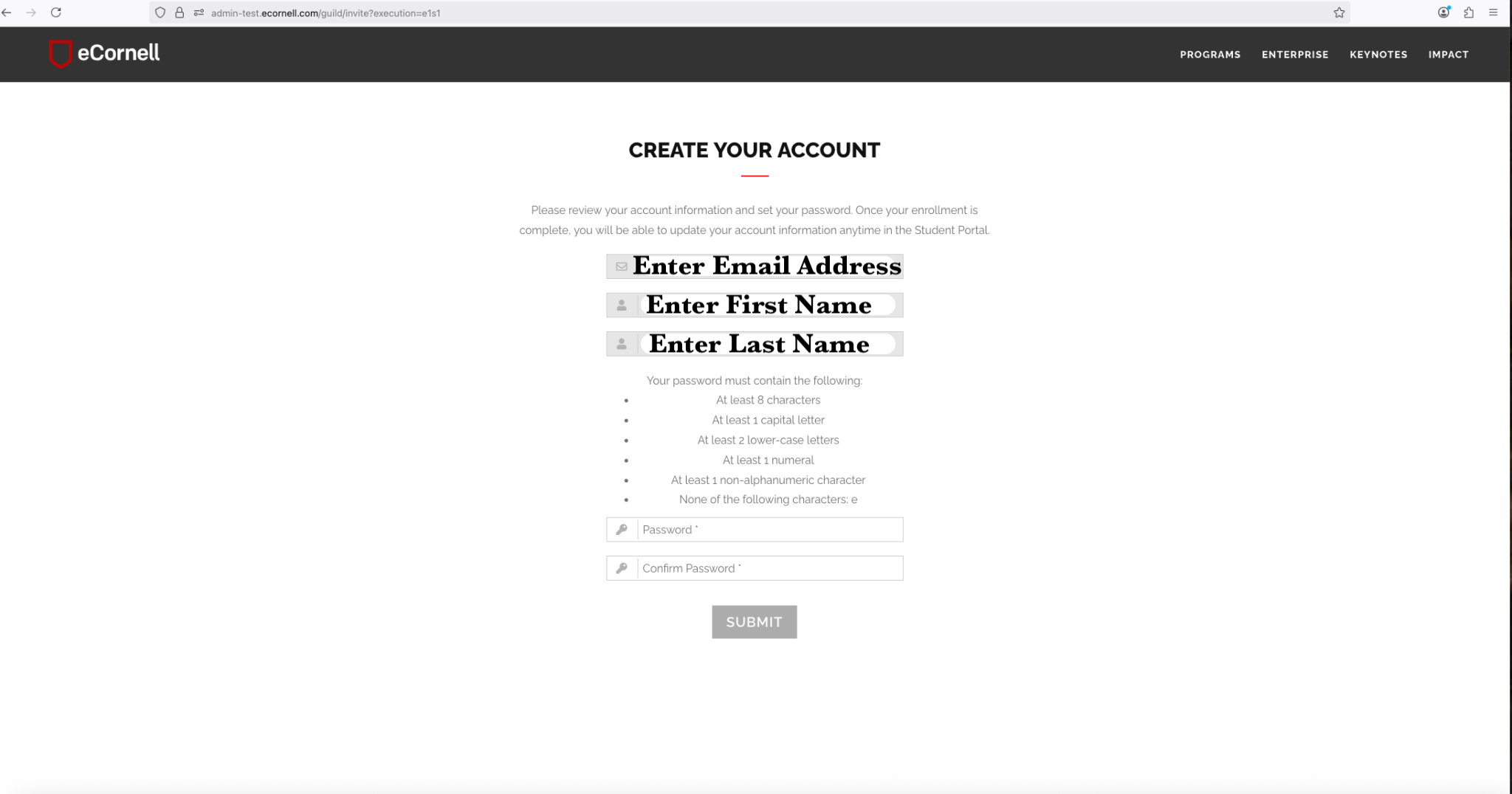
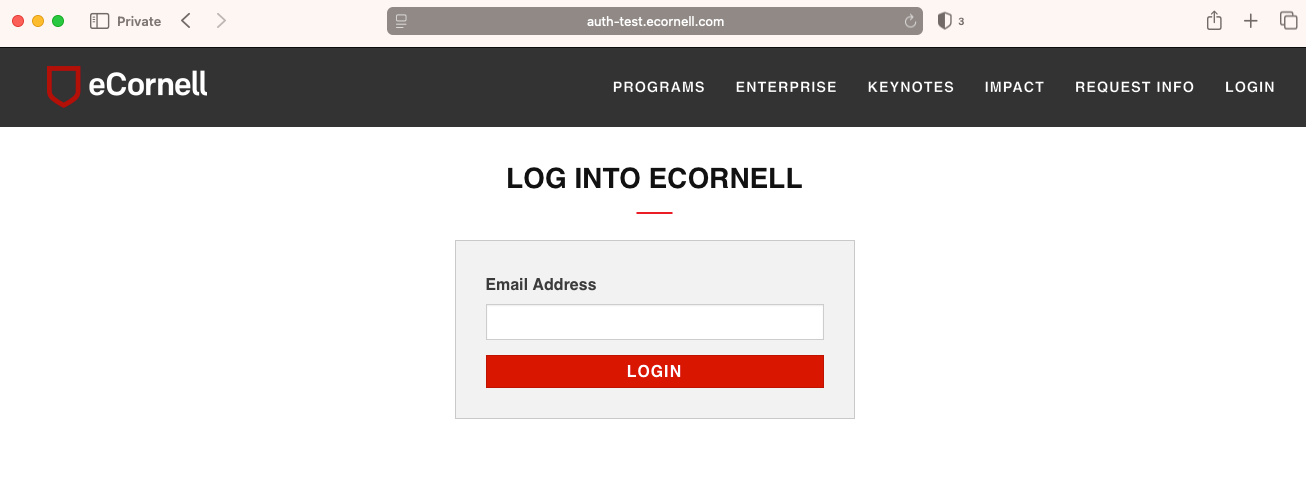
- You will be prompted to create an account unless our system recognizes your email. If it does, you will be prompted to log in.
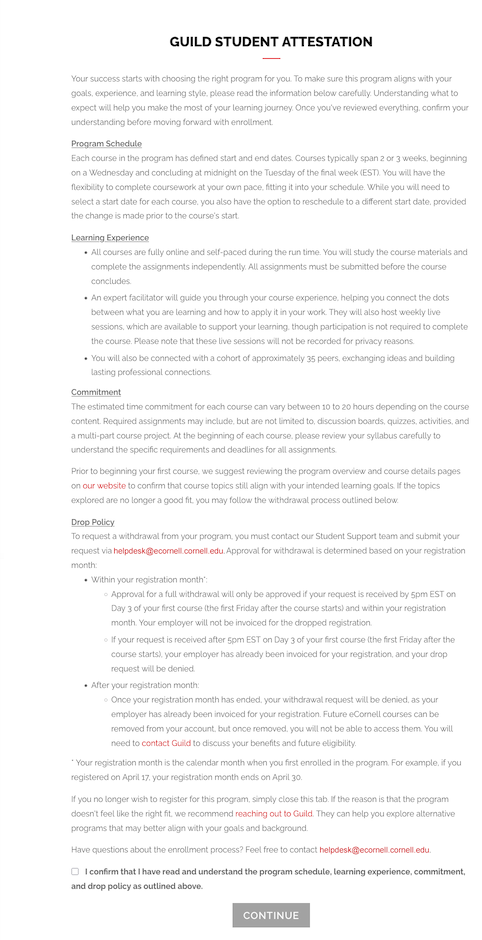
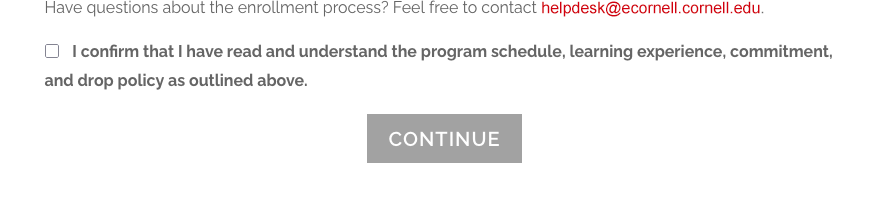
- Once you have created your account, you will need to confirm your understanding of the Guild Student Attestation to proceed. Check the box indicated and click "Continue"
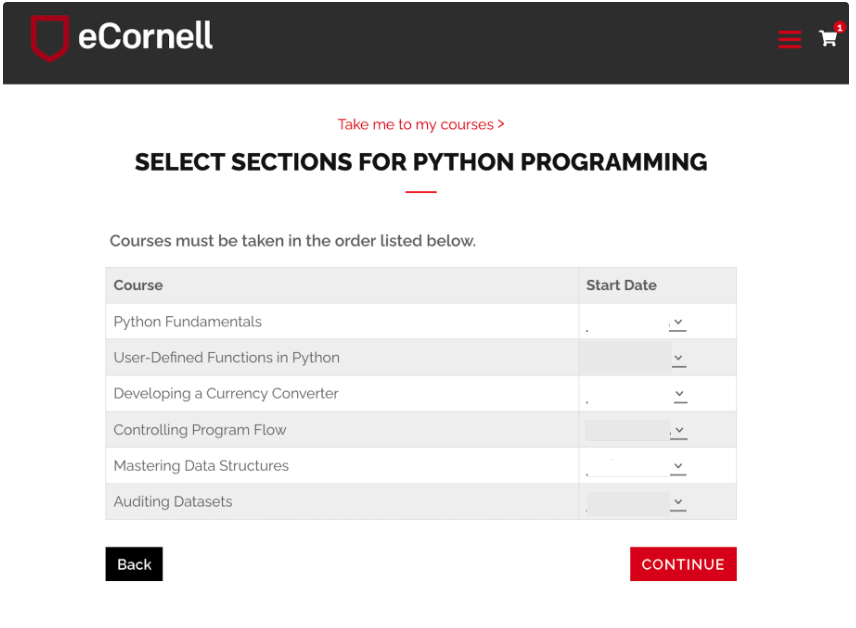
- After you have confirmed your understanding, you will be redirected to the eCornell site, where you will be prompted to select start dates for each of the individual courses that are part of your program. Once you are satisfied with the schedule, click Continue.
- On the next page, you will see your cart, which will include the name of your program and your chosen schedule. Here, you will see the full cost of the program, regardless of your funding. Click Checkout to continue.
Note: Even if your employer is funding part or all of your program, you will still see the program value on this page, don't worry! - You will be routed to a Contact Information page, where you will need to enter your name, email address, and contact information.
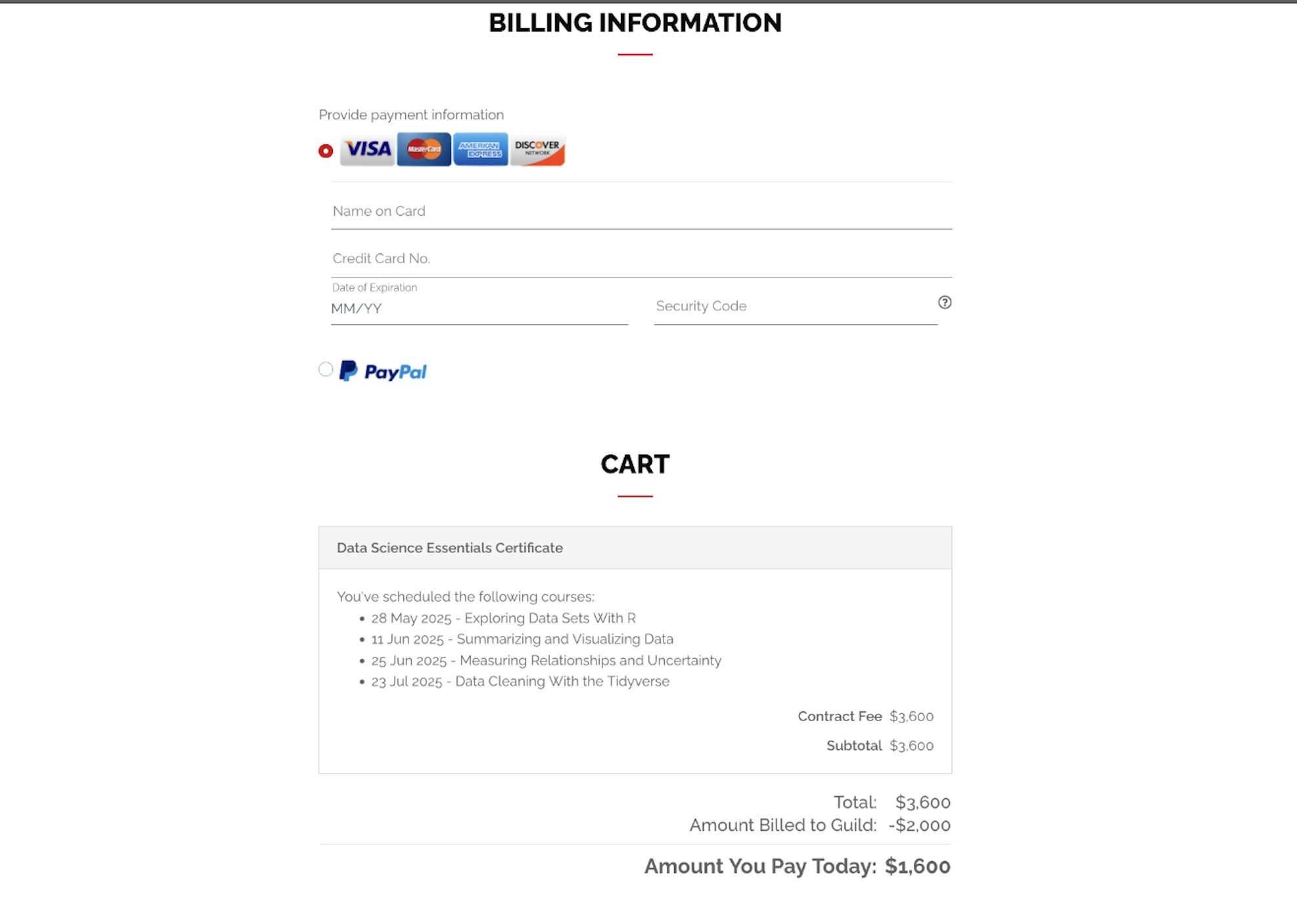
This page will also prompt you to enter the name you would like to appear on your credential upon completion. Please be sure to double-check the spelling, as the name cannot be changed after submission. Once you have entered your information and acknowledged FERPA, continue. - On the final page, you will be returned to the checkout cart, where you will see your employer-paid benefit.
- If your employer-paid benefits cover the full cost of your program, you will see a total of $0 at the bottom of the screen and can check out.
- If your employer-paid benefits do not cover the full cost of your program, you will see a balance due at the bottom of the screen. Please follow the steps on the screen to enter your payment information and check out.
 If you believe the amount shown on your screen is incorrect, please contact Guild Support or give their team a call at 1-800-985-4027 (Monday-Friday, 7am-7pm MT).
- Once you have successfully enrolled, you will receive an enrollment confirmation email from eCornell. To ensure you do not miss any communications, we recommend adding the following addresses to your contacts:
- studentsuccess@ecornell.cornell.edu
- droptransfer@ecornell.cornell.edu
- helpdesk@ecornell.cornell.edu
- notifications@instructure.com
- Please allow up to 4 hours after your enrollment confirmation email for the creation of your learning environment (LMS/Canvas) account. Following this, your course will become visible on the dashboard of learn.ecornell.cornell.edu after 9 am Eastern Time (US / New York time) on the first scheduled day of each course.
We hope you enjoy your eCornell courses. Don't forget to join us for New Student Orientation before your first course begins!
I enrolled in an eCornell program but I want to drop. How do I do that?
Updated 6.10.26 BIP